
Power BI sharing: how to share reports securely with the right users
⏲ Read time: 10 minutes

Power BI sharing is simple when the audience is small. You build a report, publish it to the Power BI service and share it with a colleague who already has the right access.
It becomes more complex when reports need to reach customers, partners, suppliers, franchisees, external stakeholders or larger internal teams. At that point, sharing is no longer only about sending a link. It becomes a question of permissions, Power BI license types, workspace roles, row-level security, external access, cost control and user experience.
This article explains how Power BI sharing works, what to consider before you share Power BI reports externally, and when a secure branded portal can make report distribution easier. It is written for organisations that already use Power BI and want to distribute existing reports in a more controlled way.
Power BI remains the place where teams create reports. Skald BI helps teams share them through a secure, branded portal layer around existing Power BI reports.
What Power BI sharing actually means
Power BI sharing means giving other users access to Power BI content. That content can include reports, dashboards, apps, semantic models and embedded report experiences.
For internal users, Power BI sharing often happens through direct links, workspace access, Power BI apps or Microsoft Teams. For external users, it can involve Microsoft Entra B2B guest access, secure embed or Power BI embedded analytics, depending on the use case and technical setup.
The practical issue is that every sharing method has consequences. A direct report link may be enough for a small internal team. A Power BI workspace may be right for collaboration between report builders. A Power BI app may work well for internal distribution to a department. But if the audience is external, customer-facing or spread across many organisations, the sharing model needs more thought.
The question is not only “How do I share a Power BI report?” The better question is: who should access it, what should they see, how should they log in, what license model applies, and what experience should they have after opening the report?
Common Power BI sharing options
Power BI gives organisations several native ways to share content. The right method depends on the audience, scale and governance requirements.
The main options are:
- Share a Power BI report or dashboard directly with named users
- Send a link to people with access or specific people
- Publish a Power BI app from a workspace
- Give users access through Power BI workspace roles
- Share Power BI reports with external users through guest access
- Embed Power BI reports into an application, website or portal
These methods are not interchangeable. Direct sharing is useful when the audience is known and limited. Power BI apps are useful when you want to package reports for broader distribution. Workspaces are mainly for organising and collaborating on content. Embedded analytics is relevant when Power BI reports need to appear inside another digital product or customer-facing environment.
A mature sharing setup often combines several of these methods. The mistake is to use one method for every situation.
How to share a Power BI report
At a basic level, sharing a Power BI report means publishing it to the Power BI service and giving access to the right people. In Power BI, permissions are tied not only to the visible report but also to the underlying semantic model.
That matters. If you share a report, users may also receive access to the semantic model behind it. Visual-level hiding, hidden pages or removed navigation are not security controls. If users should only see certain rows, row-level security should be configured on the semantic model. If columns or tables must be restricted, object-level security may be relevant.
A practical sharing flow normally looks like this:
- Build or update the report in Power BI Desktop.
- Publish it to the Power BI service.
- Place it in the right workspace.
- Decide whether to share directly, publish an app or embed it.
- Configure access, workspace roles, RLS and permissions.
- Test the report as the intended user type before rollout.
The last step is often skipped. It should not be. A report can look correct to the creator and still fail for a viewer because of missing permissions, license issues, RLS configuration or access to the underlying semantic model.
Power BI license types and sharing
Power BI sharing is closely connected to licensing. In many standard sharing scenarios, users need Power BI Pro or Premium Per User licenses. Microsoft also allows users with free licenses to consume shared content in certain Premium or Fabric capacity scenarios, but the exact setup depends on where the report and semantic model are hosted.
This is why “how to share Power BI report with free users” is a common search query. The answer depends on capacity, licensing and tenant configuration. It should not be answered with a universal shortcut.
For internal teams, Power BI license cost is usually manageable because users are known and limited. For external users, licensing becomes a more strategic question. If hundreds or thousands of customers, partners or field users need access, the organisation must understand the total distribution model, not only the report design.
This is also where Skald BI becomes relevant. Skald BI does not remove the need to understand Microsoft licensing. It helps organisations think about Power BI report distribution as a controlled portal experience, especially when reports are shared beyond a small internal Power BI audience.
Power BI workspace, roles and permissions
A Power BI workspace is a place where teams organise and manage content such as reports, dashboards, semantic models and apps. Workspace roles determine what users can do inside that workspace.
Workspace roles are powerful, but they are not always the right mechanism for every report consumer. Admins, Members and Contributors can have broad capabilities. Viewers are more limited and are usually more appropriate for consumption scenarios. Row-level security applies differently depending on the workspace role, so role design matters.
This is one reason Power BI workspace permissions should be managed carefully. Giving a user workspace access just to view one report can create broader access than intended. For internal BI teams, that may be acceptable if the workspace is designed for that audience. For customers or partners, it is usually better to separate report consumption from report production and collaboration.
A clean sharing model should separate four things: report creation, report ownership, report access and report consumption experience. Power BI workspaces are strong for the first three. A branded portal can be useful for the fourth.
Sharing Power BI reports with external users
Sharing Power BI reports with external users is possible, but it requires more governance than internal sharing. External users may need to be invited as guest users. Tenant settings must allow the relevant sharing behaviour. Users may also need the right license or access through the right capacity model.
The bigger issue is often operational rather than technical.
External users do not always understand Power BI terminology. They may not know what a workspace is, why they need a Microsoft sign-in, or why a report opens separately from the normal Power BI portal. They may simply expect a clear customer portal where their reports are available.
This is where external Power BI sharing often becomes a customer experience problem. If reporting is part of your service delivery, the way reports are accessed affects trust. A customer-facing report should feel controlled, intentional and easy to navigate.
For a small number of external stakeholders, native sharing may be sufficient. For many customers, partners or external teams, a secure branded portal may be a better distribution model.
Power BI dashboard sharing versus report sharing
Power BI dashboards and reports are related, but they are not the same thing. A Power BI report can contain multiple pages of interactive visuals based on a semantic model. A dashboard is a single canvas that can contain tiles from reports and other sources.
For sharing decisions, this distinction matters. Dashboards can be useful for high-level monitoring. Reports are usually better when users need deeper interaction, filtering, drill-downs and structured analysis.
Searches such as “how to share Power BI dashboard” or “share Power BI dashboard with external users” often hide a broader question: what should the user actually consume? If the user needs a simple KPI overview, a dashboard may work. If the user needs a repeatable customer reporting experience, a report inside a governed distribution model is often more useful.
Skald BI is most relevant when organisations already have Power BI reports that need to be distributed securely and clearly to defined audiences.
Row-level security in Power BI sharing
Row-level security in Power BI restricts data access at the row level. It allows different users to see different data in the same report, based on roles and filters in the semantic model.
This is especially important when one report structure serves multiple audiences. A regional manager may only see one region. A customer may only see its own data. A partner may only see the accounts or markets it is allowed to access.
RLS is valuable, but it is not the full sharing strategy. It controls data visibility inside the model. It does not by itself solve user onboarding, branding, portal navigation, customer grouping, support flows or report packaging.
For external users and embedded scenarios, RLS should also be tested carefully. Identity behaviour can differ depending on whether the user accesses the report through guest access, a normal Power BI session or an embedded application. The important principle is simple: never assume that RLS works as intended until it has been validated from the user’s actual access context.
Power BI Embedded and branded portals
Power BI Embedded allows organisations to embed Power BI items such as reports, dashboards and tiles into a web application or website. This is relevant when the report experience should live inside another product, portal or customer-facing environment.
Embedding can create a more controlled experience than asking users to navigate Power BI directly. But embedding alone is not the same as having a complete report distribution product. A portal also needs structure around users, branding, navigation, report grouping, permissions and administration.
This is the area where many organisations start looking for a layer around Power BI.
They do not want to replace Power BI. They want to keep building reports in Power BI and improve how those reports are shared. That is the core logic behind Skald BI.
Power BI helps teams create reports. Skald BI helps teams distribute existing Power BI reports through a secure, branded portal for customers, partners and internal audiences.
When native Power BI sharing is enough
Native Power BI sharing is often the right solution. It should be used when it fits the audience and governance model.
It is usually enough when the users are internal, the number of consumers is manageable, the organisation already uses Microsoft identity, and users are comfortable accessing content in Power BI Service, Teams or apps.
In these cases, the best next step may not be a portal. It may be better workspace structure, clearer Power BI permissions, better app packaging, tighter RLS or more disciplined ownership of semantic models.
Adding another layer too early can create unnecessary complexity. The goal is not to make Power BI distribution more elaborate. The goal is to make it more controlled, scalable and usable where native sharing starts to create friction.
When Power BI sharing becomes a portal need
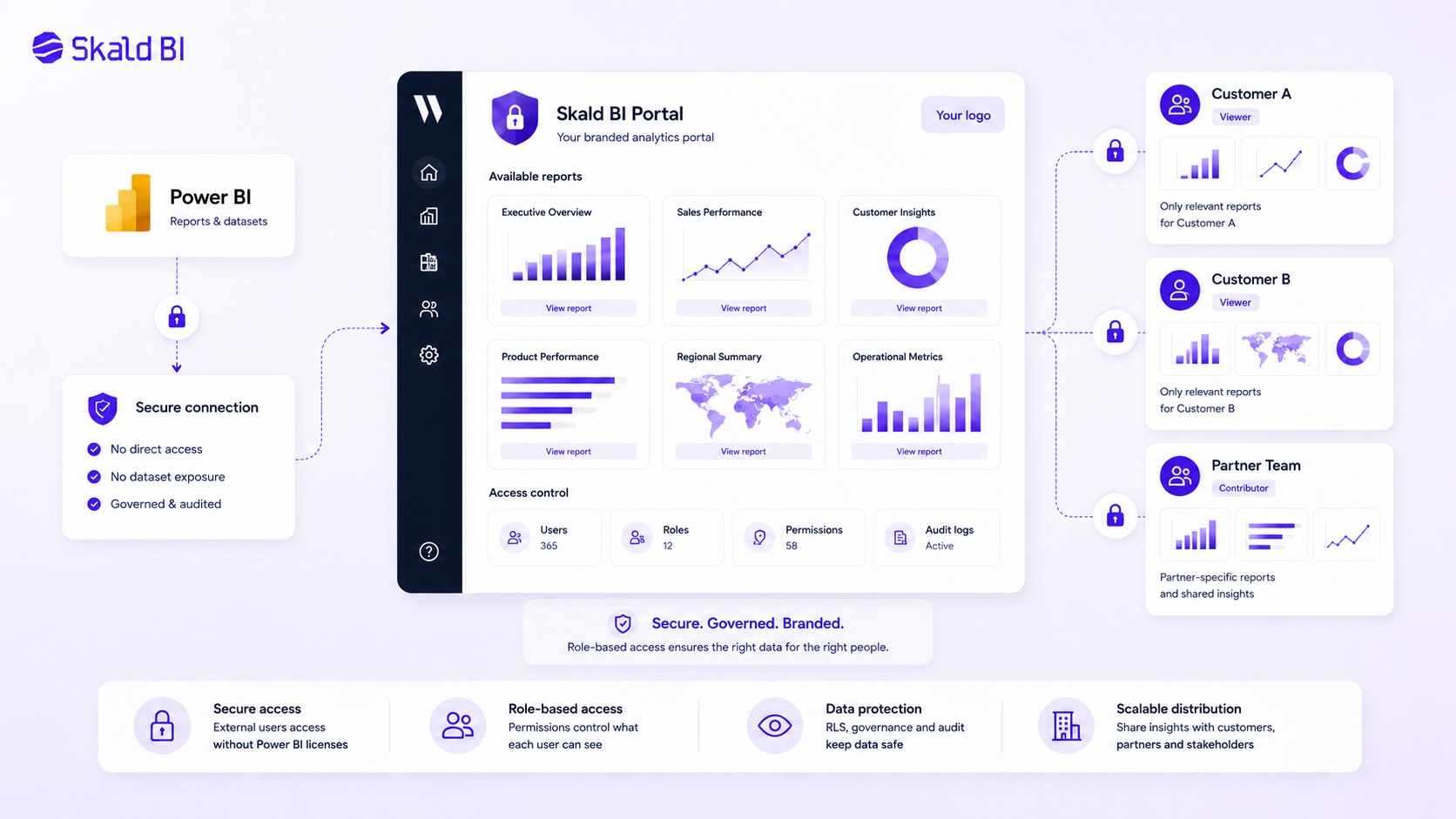
Power BI sharing becomes a portal need when reports are no longer only internal BI assets. They become part of a recurring service experience.
This often happens when reports are delivered to customers, partners, suppliers, franchisees or external stakeholder groups. These users may not care that the report was built in Power BI. They care that they can access the right report, trust the data and understand the experience.
A portal layer can be relevant when:
- Existing Power BI reports need to be shared with customers or partners
- Different user groups need different report packages or access levels
- The organisation wants a branded experience around Power BI content
- Standard workspace and link-based sharing creates administrative friction
- Report distribution needs to scale without changing how reports are built
This is the natural fit for Skald BI. It sits around existing Power BI reports and helps organisations share them through a secure, branded portal. The Power BI environment remains the report creation layer. Skald BI supports the distribution layer.
How to choose the right Power BI sharing model
The right sharing model depends on three questions.
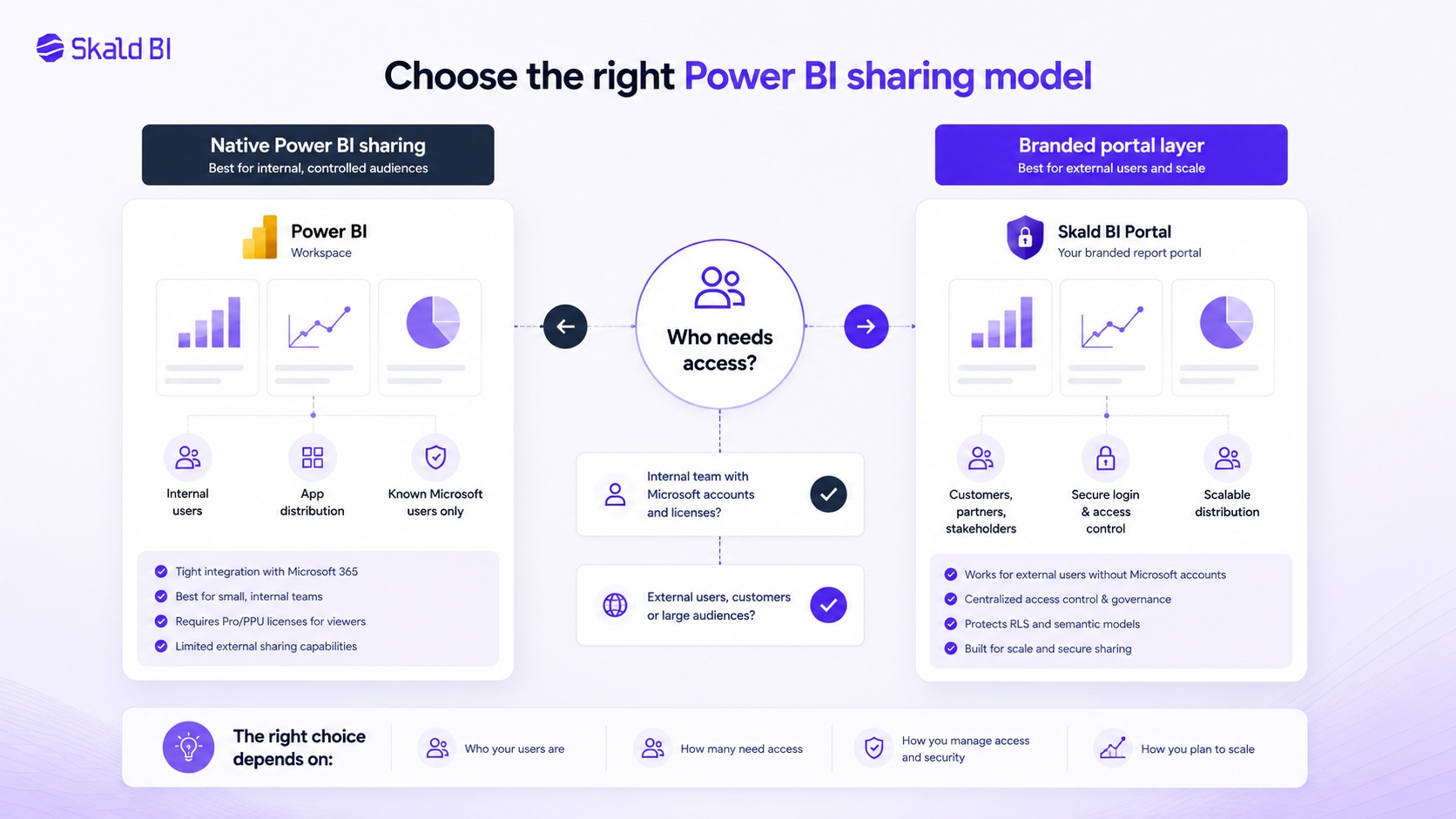
First, who is the audience? Internal analysts, managers, customers, partners and external stakeholders should not automatically be handled in the same way.
Second, what level of access control is needed? If users can see the same data, simple sharing may work. If users need different data views, RLS, permissions and identity design become more important.
Third, what experience should the user have? Internal Power BI users may accept a Power BI workspace or app. Customers and partners often expect a cleaner branded portal.
A simple rule is useful: use Power BI native sharing when the audience is internal, known and Power BI-literate. Consider a portal layer when the audience is external, larger, less technical or part of a customer-facing service.
This keeps the architecture practical. Power BI remains central. The portal only adds value where distribution, branding and access control require more structure.
Skald BI and Power BI sharing
Skald BI is built for organisations that already use Power BI and want a better way to share reports.
It does not replace Power BI Desktop, Power BI Service, Power BI workspaces or semantic models. It adds a secure and branded portal layer around existing Power BI reports so they can be distributed to the right users in a more controlled way.
That distinction matters. Many organisations have already invested in Power BI reporting, data models and internal BI competence. The challenge is not rebuilding that stack. The challenge is making the reports easier to distribute to customers, partners and broader internal audiences.
Skald BI is relevant when Power BI sharing has moved beyond “send a link” and become a question of access, permissions, branding, governance and scale.
Ready to share Power BI beyond your workspace?
If your team already builds reports in Power BI, you do not need to replace that workflow.
Skald BI helps you share existing Power BI reports through a secure, branded portal for customers, partners and internal teams.
Book a demo with Skald BI and see how your Power BI reports can be distributed with clearer access, branding and control.
Table of contents
- What Power BI sharing actually means
- Common Power BI sharing options
- How to share a Power BI report
- Power BI license types and sharing
- Power BI workspace, roles and permissions
- Sharing Power BI reports with external users
- Power BI dashboard sharing versus report sharing
- Row-level security in Power BI sharing
- Power BI Embedded and branded portals
- When native Power BI sharing is enough
- When Power BI sharing becomes a portal need
- How to choose the right Power BI sharing model
- Skald BI and Power BI sharing
- Ready to share Power BI beyond your workspace?

About the author
Mathias Melander
As Head of Product & Analytics at Skald BI, Mathias Melander leads the platform’s product strategy, technical architecture and analytics development. His focus is helping companies distribute Power BI reports securely through scalable, customer-facing BI portals.
Related articles

What is Power BI? A practical guide for teams that need better reporting and better sharing
Learn what Power BI is, how it works and why sharing reports with customers, partners or teams often requires a better portal layer.
Read more
White Label Power BI Portal: Sharing Reports Securely Beyond the Workspace
Learn what a Power BI portal is, when it is useful, and how to share Power BI reports securely with customers, partners and teams.
Read more
Power BI White Label Usecases: 8 Practical Examples for Customer and Partner Reporting
Explore 8 practical Power BI white label usecases and learn when a branded reporting portal makes sense for customers and partners.
Read more