
Power BI Workspace Permissions: Access Levels, Report Access and Secure Sharing
⏲ Read time: 11 minutes

Power BI workspace permissions define what users can do inside a Power BI workspace. They matter because the workspace is where teams collaborate on reports, semantic models, dashboards and other Power BI content before that content is distributed to end users.
The most important thing to understand is that workspace permissions are not the same as report access. A workspace role gives a user access to a broader working environment. Report access gives a user access to specific content. Confusing the two is one of the most common causes of permission sprawl, unnecessary exposure and unclear governance in Power BI.
For internal BI teams, this distinction is manageable when the audience is small. But when reports need to be shared with customers, partners, suppliers, franchisees or larger internal user groups, Power BI workspace permissions quickly become part of a larger distribution question. Who should see which report? Who should only consume data? Who can edit content? Who manages access? What experience should the end user have?
This article explains how Power BI workspace permissions work, how Power BI access levels differ, when to use workspace roles versus report access, and why some organizations add a secure portal layer around existing Power BI reports when distribution becomes more complex.
What are Power BI workspace permissions?
Power BI workspace permissions are role-based access settings that determine what a user or group can do in a Power BI workspace. Microsoft uses four main workspace roles: Admin, Member, Contributor and Viewer.
A workspace is best understood as a collaboration area for Power BI content. It is where creators, analysts and business teams manage reports, semantic models and related assets. Permissions at the workspace level are therefore broader than access to a single report. If someone receives a workspace role, that role can affect how they interact with the content inside the workspace.
This is why workspace access should be treated carefully. A workspace is usually not the right access boundary for every report consumer. It is often a good boundary for creators, owners and internal collaborators. For end users, especially external users, report-level access or a more controlled distribution model may be more appropriate.
The practical question is not only “Can this person open the report?” It is also “Why does this person need access to the workspace at all?”
Power BI workspace access levels explained
Power BI workspace access levels define the user’s role inside a workspace. Each role gives a different level of control. At a high level, the roles move from full administration to read-only consumption.
The four Power BI workspace access levels are:
-
Admin: Can manage the workspace, including access and permissions.
-
Member: Can collaborate broadly in the workspace and share content.
-
Contributor: Can create and edit content, but has less administrative control than Admin or Member.
-
Viewer: Can view and interact with content, without editing it.
For most organizations, the principle should be simple: give users the lowest role that allows them to do their job. Admin should be limited to people who are genuinely responsible for the workspace. Member and Contributor should normally be reserved for people who build, maintain or publish content. Viewer is typically the safest role for users who only need to consume reports inside a workspace.
The risk is that teams often use workspace roles as a shortcut. Someone asks for access to a report. Instead of giving access to that report, they are added to the workspace. Over time, the workspace becomes a mixed environment of developers, business owners, casual viewers, external stakeholders and old users who should no longer have access. That is where governance starts to break down.
Power BI workspace permissions vs report access
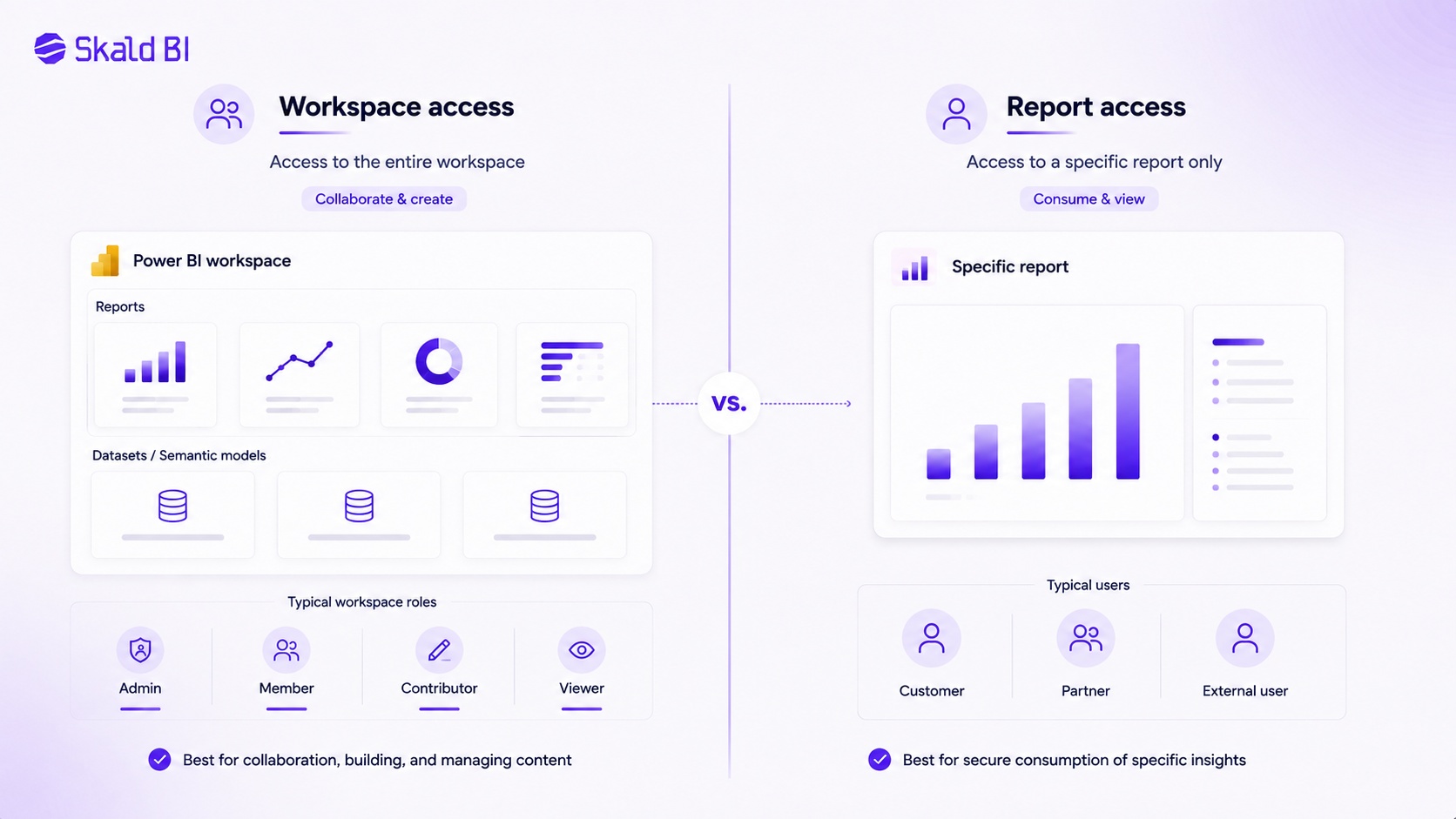
Power BI workspace permissions and report access solve different problems. Workspace permissions control access to the workspace. Report access controls access to a specific report or dashboard.
This distinction matters because a workspace can contain multiple reports, semantic models and other assets. If a user is added to the workspace, they may receive broader access than intended. If they are granted access to a specific report, the access can be narrower and more targeted.
Workspace permissions are usually better for collaboration. Report access is usually better for consumption.
For example, an internal analytics team may need Contributor access to build and maintain reports. A finance lead may need Viewer access to monitor content in a workspace. A customer, however, usually does not need to enter the workspace at all. They need a controlled way to view the report that is relevant to them.
This is especially important when comparing power bi workspace permissions vs report access for external distribution. Workspace access can be too broad for many external use cases. Report access is narrower, but it can still create operational complexity when there are many customers, user groups, report variations and permission rules to manage.
When should you use workspace roles?
Workspace roles are useful when users need to work inside the Power BI workspace. That usually means they are part of the report creation, maintenance, publishing or governance process.
A good workspace permission setup usually separates creators from consumers. Creators need tools and rights to build. Consumers need a simple and safe way to access finished content. When these groups are mixed in the same access model, the environment becomes harder to manage.
Use workspace roles when the user needs to:
-
Build, edit or maintain reports and semantic models.
-
Publish or update Power BI content.
-
Manage access, ownership or workspace settings.
-
Collaborate with other internal Power BI creators.
-
Review several related reports as part of an internal BI process.
If a user only needs to consume one or a few reports, workspace access may be unnecessary. That is the point where report access, apps, embedded analytics or a portal layer should be considered instead.
The hidden issue is not technical. It is organizational. When workspace access becomes the default answer to every access request, nobody has a clean view of who should be there, why they were added, and whether they still need access.
How Power BI permissions affect governance
Power BI permissions are a governance issue, not only an IT setting. They shape who can see data, who can change reports, who can share content and who owns access decisions.
In smaller teams, governance may be handled informally. A few analysts know who uses each report. Permissions are updated manually. Exceptions are manageable. But as the number of reports, users and external stakeholders grows, informal governance becomes fragile.
The most common governance problems are simple:
Users are added at the wrong level. Old access remains after roles change. External users are managed manually. Similar reports are distributed in different ways. Business owners do not know who can see what. Developers become responsible for user support instead of analytics work.
Power BI provides several mechanisms for sharing and collaboration, including workspace roles, report sharing, apps, Microsoft Entra B2B guest access and embedded analytics. The right model depends on the audience, security requirements, licensing setup and operating model. The mistake is assuming that one permission setting can solve every distribution scenario.
Governance improves when the access model reflects the real business process. Internal collaboration, internal consumption and external distribution should not automatically use the same structure.
Row-level security and workspace roles
Row-level security, often called RLS, is used to restrict data access for specific users by filtering data at the row level. In Power BI, RLS is an important part of secure report distribution, especially when different users should see different slices of the same dataset.
But RLS does not remove the need to manage workspace permissions carefully. Microsoft states that RLS restricts data access for users with Viewer permissions, but it does not apply to Admins, Members or Contributors. That means users with higher workspace roles may have broader access than a normal report viewer.
The implication is practical. If you want RLS to govern what a consumer can see, you need to be careful about giving that user elevated workspace access. A user who should only consume filtered data should not casually be given Contributor, Member or Admin rights.
This is one of the reasons why workspace permissions should not be treated as a simple sharing mechanism. Workspace roles can change the security model. For customer-facing and partner-facing reports, that detail matters.
External users and Power BI workspace permissions
Power BI can support external sharing through Microsoft Entra B2B guest access. This allows organizations to share Power BI content with users outside their own organization, while managing external identities through Microsoft Entra.
For some scenarios, this is a good fit. If you are sharing content with a small number of known external stakeholders, and your organization already has a strong Microsoft identity and governance setup, guest access can be a practical model.
But external sharing becomes harder when the audience grows. Customers and partners may not want to interact with your internal Microsoft environment. They may expect a branded experience. Your team may need to control access across many organizations, user groups and report packages. Commercial teams may want reporting to feel like part of the product or service, not like a link into an internal BI system.
This is where the discussion moves beyond Power BI workspace permissions. The question becomes how the report should be distributed, experienced and governed at scale.
Power BI helps teams create reports. Skald BI helps teams share existing Power BI reports through a secure, branded portal layer. That distinction is important. Skald BI is not a replacement for Power BI. It is relevant when the challenge is no longer report creation, but controlled report distribution.
Power BI Embedded and customer-facing reporting
Power BI Embedded is often considered when organizations want to integrate Power BI reports into an application or customer-facing experience. Microsoft describes an “embed for your customers” scenario where app users do not need to sign in to Power BI or have a Power BI license. The application uses an embedding identity that has the required permission and licensing setup.
This can be powerful, but it also changes the implementation question. You are no longer only configuring workspace permissions. You are designing an application experience, authentication model, access logic and operating process around reports.
For software companies, portals, customer platforms or partner reporting environments, this may be the right direction. But it requires deliberate architecture. The BI team needs to keep building reports in Power BI, while the distribution layer handles how users reach those reports, how access is controlled and how the experience is presented.
That is the space where a platform like Skald BI fits. The reports remain Power BI reports. The portal layer helps package access, branding and distribution into a more controlled experience for customers, partners or larger internal audiences.
Common mistakes with Power BI workspace permissions
Most permission problems do not start as major security failures. They start as small shortcuts. A user needs access quickly. A customer needs to see a report before a meeting. A colleague cannot open a dashboard. Someone adds them to the workspace because it works.
The problem is that quick fixes become structure.
One common mistake is giving too many users workspace access when they only need report access. Another is using Admin or Member roles too broadly. A third is assuming that RLS will protect all scenarios, even when users have elevated workspace roles. A fourth is treating external users like internal users, even though the business context is different.
There is also a customer experience problem. A technically correct Power BI sharing setup may still feel fragmented to an external audience. Users may need to navigate unfamiliar Microsoft flows, accept guest invitations, manage account confusion or receive separate links for different reports. None of this is necessarily wrong from a Power BI perspective, but it may be wrong from a customer experience perspective.
A good permission model should be secure, understandable and operationally sustainable. If only one person understands how access works, the model is already fragile.
A practical model for deciding access
A better way to approach Power BI permissions is to start with the audience and use case, not the feature.
Internal creators need workspace access. Internal report consumers may need report access, app access or Viewer access depending on how the organization manages content. External customers and partners usually need a more controlled distribution experience, especially when reporting is part of a product, service or recurring business relationship.
Before assigning permissions, ask five questions:
-
Is this user creating, maintaining or only consuming reports?
-
Does the user need access to the whole workspace or only specific content?
-
Should the user see all data or filtered data through RLS?
-
Is the audience internal, external or mixed?
-
Does the reporting experience need to be branded, scalable and easy to manage?
These questions prevent the most common mistake: solving a distribution problem with a workspace permission change. Sometimes that is enough. Often it is not.
If the audience is small and internal, native Power BI permissions may be sufficient. If the audience is external, commercial, multi-tenant or brand-sensitive, the organization should consider a dedicated distribution layer around Power BI.
Where Skald BI fits in the Power BI permission model
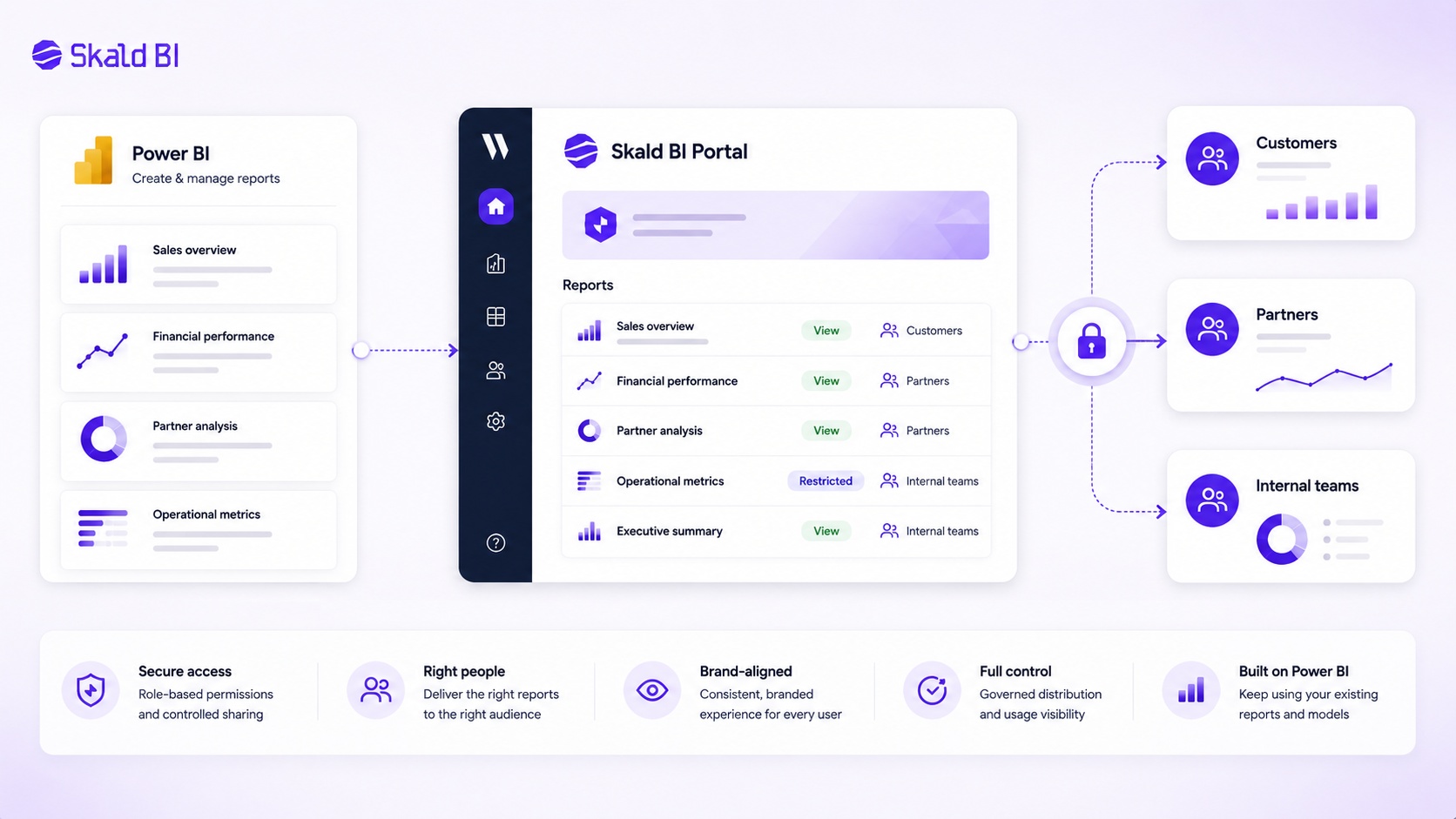
Skald BI is relevant when an organization already uses Power BI, already has valuable reports, and now needs a better way to share them with the right people.
The role of Skald BI is not to replace Power BI Desktop, Power BI Service or the report development workflow. Teams can continue building reports in Power BI. Skald BI adds a portal layer around existing reports, focused on access, rights, branding, cost control and simpler distribution.
This matters because workspace permissions were designed primarily around collaboration in Power BI. They are important, but they are not always the ideal user experience for customers, partners or broad internal groups. A customer does not usually care about your workspace structure. They care about seeing the right report, in the right context, with the right level of access.
For many organizations, the strategic shift is this: Power BI remains the analytics engine, while the portal becomes the distribution experience.
That separation makes the model easier to explain internally. BI teams own reports. Business teams own the audience and customer context. IT and data owners govern access and security. The end user gets a cleaner way to consume insights.
Final thoughts on Power BI workspace permissions
Power BI workspace permissions are essential for managing collaboration and access inside Power BI. The key is to use them for the right job.
Admin, Member, Contributor and Viewer roles help teams control what people can do inside a workspace. Report access helps narrow distribution to specific content. RLS can restrict what data users see, but it depends on the user’s role and must be designed carefully. External sharing and embedded analytics can extend Power BI beyond the organization, but they introduce new decisions around identity, licensing, user experience and governance.
The mistake is treating permissions as a purely technical setting. In practice, permissions define how analytics moves through the organization and beyond it.
If your team is only sharing reports internally with a small group, native Power BI access controls may be enough. If you are sharing Power BI reports with customers, partners or larger audiences, the workspace is probably not the experience you want to expose. That is when a secure, branded portal layer becomes worth considering.
Ready to share Power BI beyond your workspace?
Book a demo with Skald BI and see how your existing Power BI reports can be shared through a secure, branded portal for customers, partners and internal teams.
Table of contents
- What are Power BI workspace permissions?
- Power BI workspace access levels explained
- Power BI workspace permissions vs report access
- When should you use workspace roles?
- How Power BI permissions affect governance
- Row-level security and workspace roles
- External users and Power BI workspace permissions
- Power BI Embedded and customer-facing reporting
- Common mistakes with Power BI workspace permissions
- A practical model for deciding access
- Where Skald BI fits in the Power BI permission model
- Final thoughts on Power BI workspace permissions

About the author
Ola Wahlström
Ola Wahlström is a Partner and Senior Consultant at Wahsel, focused on using data, analytics and visualisation to drive the CFO agenda and create measurable business impact. He has held senior executive roles including Interim CFO at Nelly Group, COO at Stampen Media and Group CFO at MQ Holding, and works with forecasting, pricing, margin control, management reporting and commercial performance improvement.
Related articles

Power BI sharing: how to share reports securely with the right users
Learn how Power BI sharing works across reports, dashboards, workspaces, external users, licenses, RLS and secure branded portals.
Read more
How to share Power BI report with free users
Learn when you can share Power BI reports with free users, what licenses are needed, and when a branded portal may be a better option.
Read more
White Label Power BI Portal: Sharing Reports Securely Beyond the Workspace
Learn what a Power BI portal is, when it is useful, and how to share Power BI reports securely with customers, partners and teams.
Read more