
Power BI Dashboard Examples: Practical Ideas for Business Teams
⏲ Read time: 11 minutes

Power BI dashboard examples are useful because most teams do not start with a technical question. They start with a business question.
Which customers are at risk? Are sales behind target? Where are costs moving faster than revenue? Which suppliers, regions or teams need attention? A good Power BI dashboard helps answer these questions quickly, without forcing users to search through multiple spreadsheets, systems or reports.
Power BI is well suited for building reports and dashboards around business data. But the value of a dashboard is not only in how it looks. The real value comes from how clearly it supports decisions, how easily the right people can access it, and how well it fits into the way the organization works.
This article gives practical Power BI dashboard examples for different business contexts. It also explains what separates a useful dashboard from a decorative one, and why sharing, access control, branding and governance become important once dashboards are used outside the core analytics team.
What Is a Power BI Dashboard?
In Power BI, a dashboard is typically a single-page view in the Power BI service that brings together visuals, tiles and key information. It is designed to give users a quick overview of important metrics. A report, by comparison, can contain multiple pages and deeper analysis.
This distinction matters. Many people search for “Power BI dashboard examples” when they are really looking for report ideas, executive views, KPI pages or customer-facing analytics experiences. In practice, organizations often use a combination of Power BI reports and dashboard-like pages to serve different audiences.
A dashboard should not try to answer every possible question. It should help the user understand status, spot exceptions and know where to go next. Good Power BI dashboard design starts with audience, not visuals.
What Makes a Good Power BI Dashboard?
The best Power BI dashboards are specific. They are built around a defined user group, a clear business process and a small number of decisions. A dashboard for a CFO should not look like a dashboard for a warehouse manager. A customer-facing dashboard should not expose the same information as an internal management report.
A practical Power BI dashboard should usually answer five questions:
- What is happening now?
- How does performance compare with target, budget or previous period?
- Where are the main deviations?
- Which users or teams need to act?
- Can the viewer trust that they are seeing the right data for their role?
The last question is often overlooked. Once reports move beyond a small internal group, access and governance become part of the user experience. A dashboard is only useful if the right person can find it, open it and understand what they are allowed to see.
Executive Power BI Dashboard Example
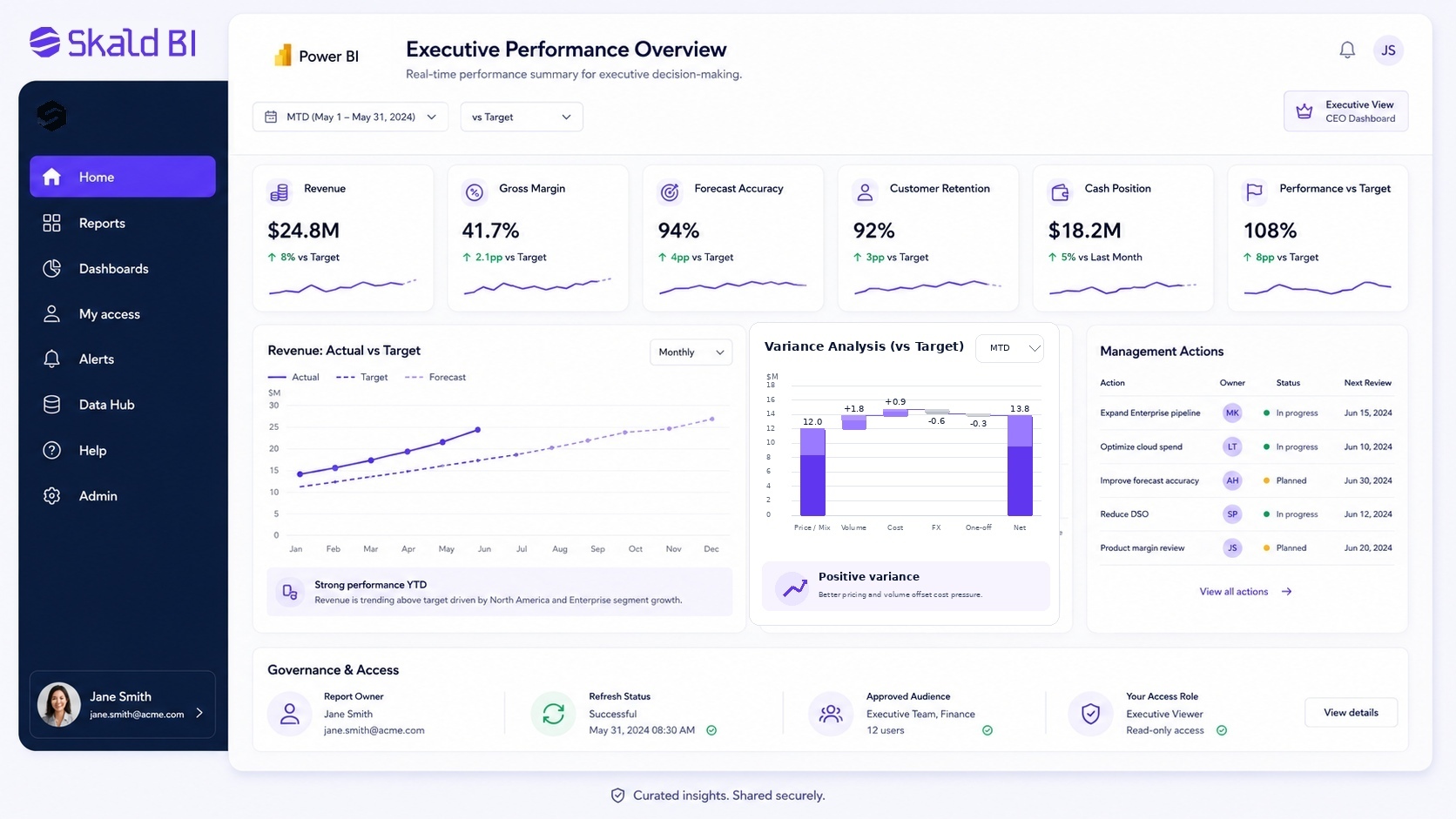 An executive dashboard should give a concise view of business performance. The audience is usually the CEO, CFO, management team or board. These users do not need every operational detail on the first page. They need a clear view of direction, risk and exceptions.
A typical executive Power BI dashboard might include revenue, gross margin, cash position, forecast accuracy, customer concentration, sales pipeline and major operational KPIs. The structure should follow the way the business is managed. For a SaaS company, that may include ARR, churn, net revenue retention and customer acquisition cost. For a retail company, it may include sales, margin, inventory, conversion and campaign performance.
The dashboard should separate signal from noise. Trend lines, variance to target and exception indicators are often more useful than large tables. Executives need to understand whether performance is ahead, behind or changing faster than expected.
For executive reporting, distribution is also important. If the dashboard is used in board meetings, management reviews or investor discussions, the organization needs clear control over who can access it.
This is where many teams start to think beyond dashboard creation. Power BI helps the team build the report. A portal layer such as Skald BI can be relevant when the same reporting experience needs to be shared in a more controlled, branded and scalable way with selected internal or external audiences.
Sales Performance Dashboard Example
A sales dashboard should connect commercial activity to revenue outcomes. It should not only show booked sales. It should help sales leaders understand pipeline quality, conversion, forecast risk and where coaching or management attention is needed.
A practical sales Power BI dashboard can show pipeline by stage, expected close date, win rate, average deal size, sales cycle length, quota attainment and forecast versus target. For account-based B2B sales, it can also include customer segment, industry, region, owner and next action.
Sales dashboards are often shared with different groups. Management may need the full view. Sales reps may need only their own accounts. Partners or distributors may need a filtered view of their territory. In those cases, access control and role-based visibility become part of the design, not an afterthought.
Finance Dashboard Example
A finance dashboard should create confidence in the numbers. It is less about visual complexity and more about clarity, consistency and traceability.
Common finance dashboard elements include revenue, cost, gross margin, operating profit, cash flow, working capital, overdue receivables, budget variance and forecast updates. The dashboard should make it easy to move from overview to explanation. For example, a CFO may want to see that margin is down, then understand whether the driver is price, volume, mix, discounts, supplier cost or currency.
Finance dashboards often require careful definitions. Revenue recognition, cost allocation, currency conversion and period cutoffs must be handled consistently. If business users do not trust the numbers, design will not fix the problem.
For larger organizations, finance dashboards may also have different audiences. The group CFO may need consolidated reporting. Business unit leaders may need only their area. External owners, investors or board members may need a curated and controlled reporting package. When finance dashboards are distributed beyond the finance team, the sharing model must be deliberate.
Customer Success Dashboard Example
A customer success dashboard is useful when a company needs to monitor customer health, product usage, renewal risk and account growth. It is especially relevant for SaaS, subscription services and recurring B2B relationships.
A good customer success dashboard may include active users, usage frequency, feature adoption, support tickets, customer satisfaction, renewal date, contract value, expansion potential and health score. The purpose is not only to measure customers. It is to help the customer success team prioritize action.
There is also an external version of this use case. Some companies want to give customers direct access to their own reporting. That can be valuable, but it changes the requirements. The experience must feel professional, access must be controlled, and customers should only see the data intended for them.
Operations Dashboard Example
An operations dashboard should help teams manage flow, capacity and exceptions. The audience may include operations managers, logistics teams, store managers, production leads or service delivery teams.
Typical metrics include order volume, delivery performance, backlog, lead time, capacity utilization, incident count, service level, quality issues and cost per unit. The dashboard should highlight bottlenecks and make it clear where operational attention is needed.
Operations dashboards often grow quickly because many teams want their own versions. This can create report sprawl. Without governance, organizations may end up with multiple dashboards showing slightly different numbers for the same process. Power BI workspaces, ownership rules and publishing practices can help, but the organization still needs clear reporting discipline.
Customer-Facing Power BI Dashboard Example
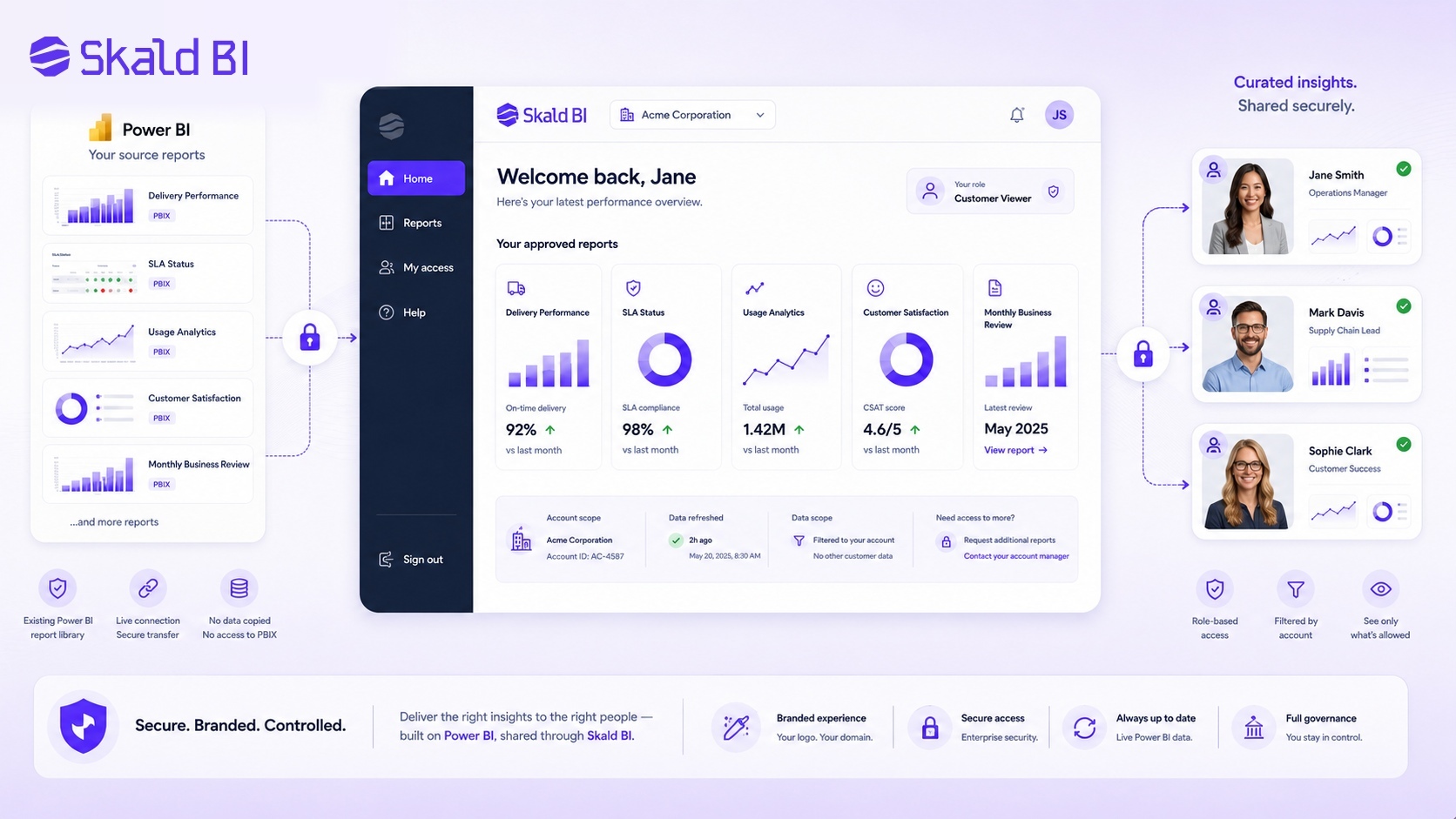
A customer-facing dashboard is different from an internal dashboard. The viewer is outside the organization, which changes the expectations around access, design, language and trust.
Examples include performance reporting for clients, delivery status dashboards, service quality reports, survey results, usage analytics, partner sales reporting or financial reporting for customers. In these cases, the dashboard is part of the customer experience. It should feel intentional, not like an internal report that has been exposed externally.
Customer-facing dashboards should be simple, filtered and clearly branded. The user should know what they are looking at, which period the data covers, and how to interpret the metrics. They should not need to understand the internal Power BI workspace structure.
This is also where governance becomes critical. External users should only access the reports and data intended for them. Depending on the setup, organizations may use Power BI sharing, Microsoft Entra B2B, embedded analytics or a separate portal approach. The right model depends on the audience, license context, data sensitivity and operational needs.
Skald BI is built for organizations that already use Power BI and want to share existing reports through a secure, branded portal. The point is not to replace Power BI. The point is to make distribution easier when reports need to reach customers, partners or larger user groups.
Partner and Supplier Dashboard Example
Partner and supplier dashboards help organizations share performance data across company boundaries. This can include sell-through reporting, stock levels, campaign results, delivery performance, service levels, compliance metrics or joint business planning KPIs.
The dashboard should focus on the relationship between the organizations. A supplier does not need internal management reporting. A reseller does not need the full sales model. A partner needs the information that helps them act within their role.
This creates a practical challenge. The same underlying Power BI reports or semantic models may support many partners, but each partner should only see the right data. Row-level security can help filter data at the row level when correctly designed, but organizations still need to think through the full access experience, user management and publishing model.
Power BI Dashboard Examples by Audience
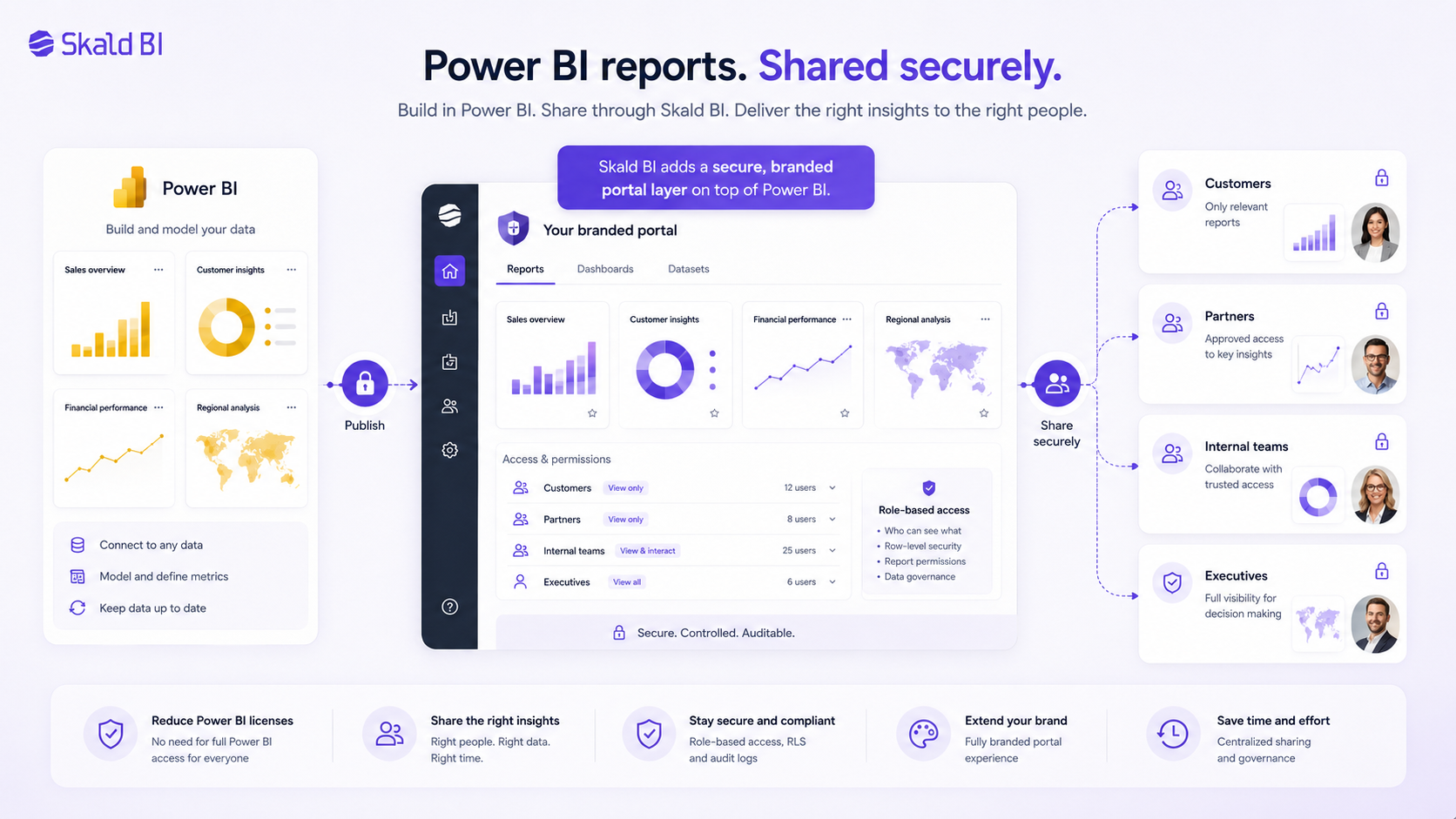
The most useful way to choose dashboard examples is to start with the audience. A dashboard is not a static artifact. It is a decision support tool for a specific group of users.
An executive dashboard may need a small number of board-level KPIs. A manager dashboard may need team comparison and variance. An analyst report may need detail and drill-through. A customer dashboard may need simplicity, branding and strict access control. A partner dashboard may need controlled external distribution across many organizations.
This is why copying dashboard examples without context often fails. A dashboard that works well for one company may be wrong for another because the process, data maturity and audience are different.
Before building or redesigning a dashboard, define the dashboard logic clearly:
- Audience: who will use it and how often?
- Decision: what decision or action should it support?
- Data scope: what data should be included and excluded?
- Access: who is allowed to see which version?
- Distribution: where should users go to find and use it?
These questions are more important than choosing a visual theme. Design follows from the business use case.
Power BI Dashboard Design Principles
Strong Power BI dashboards are usually simple. They do not try to prove how much data the organization has. They reduce complexity for the user.
A good first page should show the most important KPIs, trends and exceptions. Detailed tables, filters and drill-down pages can exist behind the overview, but they should not overwhelm the starting point. Users need to understand what matters before they explore why it happened.
Consistency also matters. Metrics should use the same definitions across reports. Time periods should be clear. Colors should have meaning. Labels should be written for the audience, not for the data model.
For external dashboards, language becomes even more important. Internal abbreviations, system names and unclear metric definitions create friction. If customers or partners use the dashboard, the experience should be curated. They should see a reporting product, not an internal analytics workspace.
Common Mistakes in Power BI Dashboards
Many Power BI dashboards become too complex because every stakeholder wants their own metric included. This creates dashboards that are technically rich but commercially weak.
The first mistake is overloading the dashboard. Too many visuals reduce clarity. The user cannot tell what matters. The second mistake is mixing strategic, tactical and operational metrics on the same page without hierarchy. The third mistake is weak ownership. If no one owns definitions, refresh logic and access rights, trust declines.
Another common mistake is treating sharing as a late-stage task. A dashboard may work well for five internal users, but fail when it needs to support fifty customers, two hundred partners or a large internal frontline organization. At that point, user management, permissions, branding and support become part of the reporting model.
The dashboard itself may be good. The distribution model may be the problem.
Sharing Power BI Dashboards Beyond the Core Team
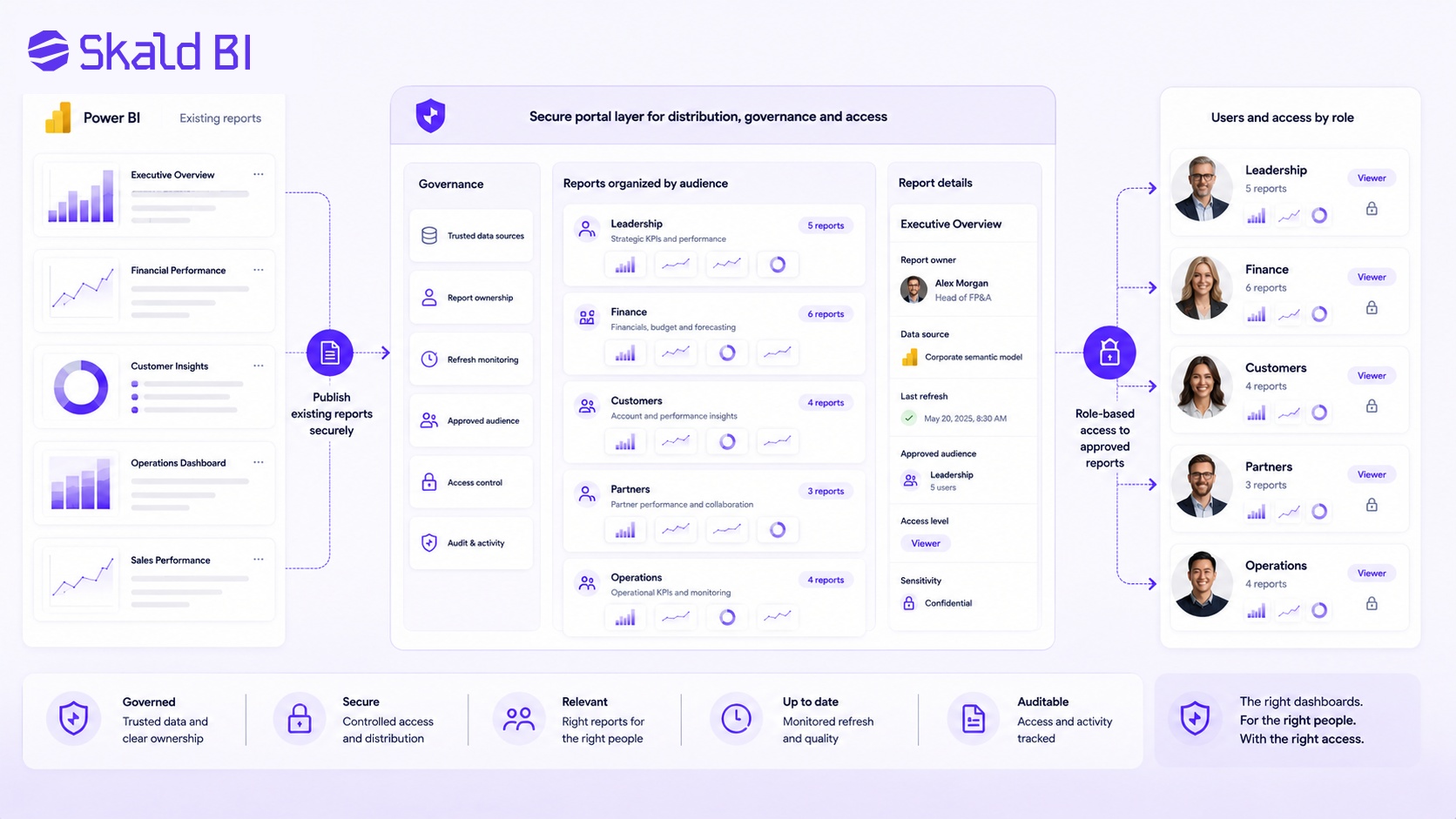
Power BI provides several ways to share and collaborate on reports and dashboards. The right approach depends on who the users are, how they authenticate, what licenses apply, and how much control the organization needs.
Internal sharing is often straightforward when users belong to the same organization and governance is clear. External sharing requires more thought. Organizations may need to consider Microsoft Entra B2B guest access, Power BI Embedded, workspace roles, app distribution, row-level security and tenant settings. The correct setup depends on the use case and should be validated against Microsoft documentation and the organization’s security policies.
The practical issue is that business teams often want a simple outcome: “We have Power BI reports. We need customers, partners or teams to access the right ones in a professional way.”
That is the gap Skald BI addresses. Power BI remains the place where reports are built. Skald BI adds a secure and branded portal layer around existing Power BI reports, helping organizations distribute analytics to the right users without turning every external reporting need into a custom project.
When a Branded Power BI Portal Makes Sense
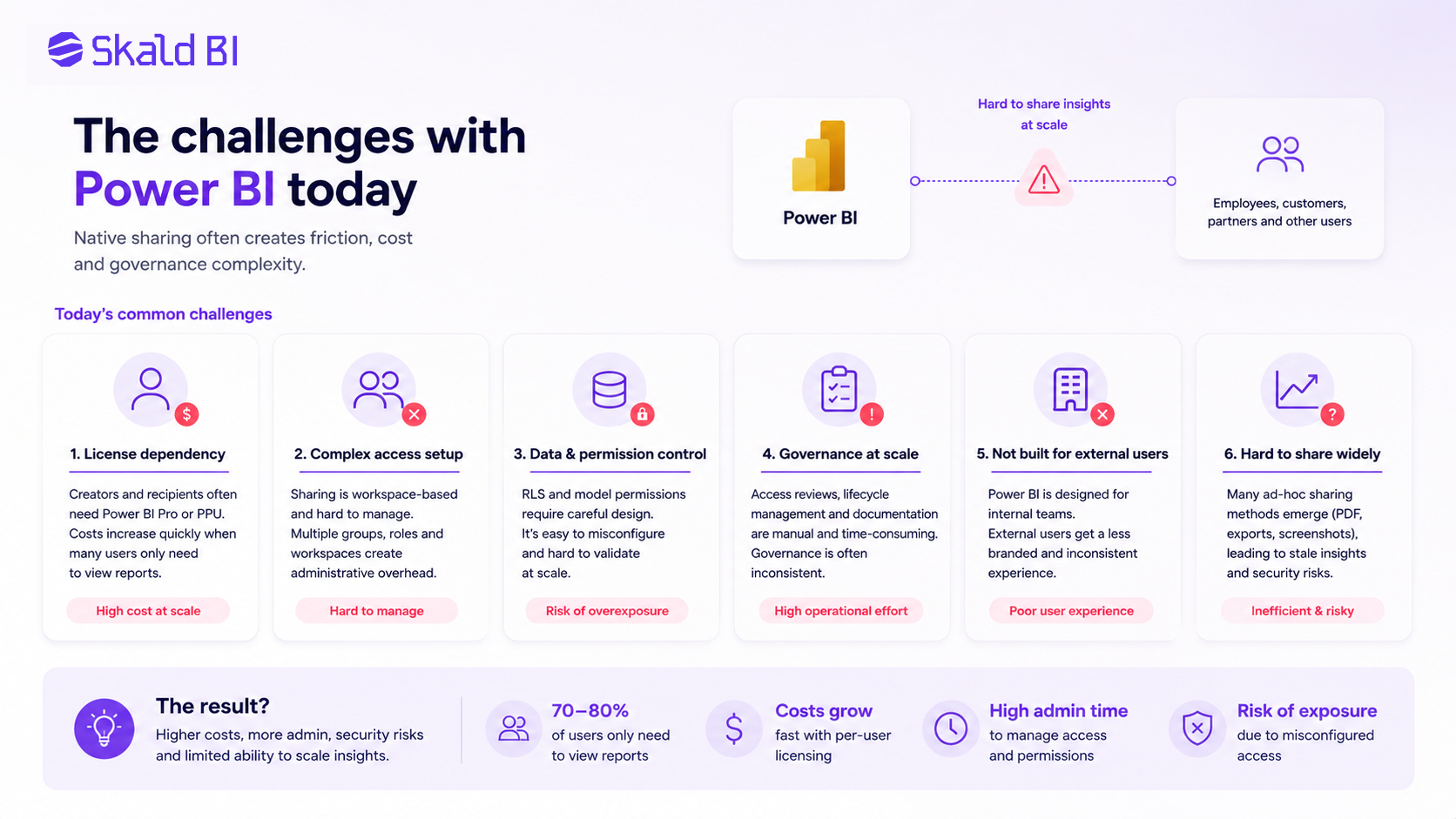 A branded portal is not necessary for every Power BI dashboard. If reports are only used by a small internal team, standard Power BI sharing may be enough. The need usually appears when reporting becomes part of a broader business process or customer experience.
A portal becomes more relevant when the organization needs to share reports with customers, partners, franchisees, suppliers, board members or a large internal population. It is also relevant when the reporting experience should match the company brand, reduce manual access work or make it easier for users to find the right reports.
The key point is that the portal should not create a parallel analytics stack. For many organizations, the efficient model is to keep building reports in Power BI and improve how those reports are distributed. That keeps the analytics team working in a familiar environment while improving the user experience around access and presentation.
Skald BI is designed for that scenario. It supports the idea that Power BI is the reporting engine, while Skald BI acts as the sharing and portal layer for controlled distribution.
Ready to Share Power BI Beyond Your Workspace?
Power BI dashboard examples can help teams design better reporting, but the next question is often distribution. Who should see the report? How should they access it? What should the experience look like for customers, partners or larger internal teams?
If your organization already uses Power BI and wants to share existing reports through a secure branded portal, Skald BI can help.
Book a demo with Skald BI and see how your existing Power BI reports can be shared with the right users through a controlled, professional portal experience.
Table of contents
- What Is a Power BI Dashboard?
- What Makes a Good Power BI Dashboard?
- Executive Power BI Dashboard Example
- Sales Performance Dashboard Example
- Finance Dashboard Example
- Customer Success Dashboard Example
- Operations Dashboard Example
- Customer-Facing Power BI Dashboard Example
- Partner and Supplier Dashboard Example
- Power BI Dashboard Examples by Audience
- Power BI Dashboard Design Principles
- Common Mistakes in Power BI Dashboards
- Sharing Power BI Dashboards Beyond the Core Team
- When a Branded Power BI Portal Makes Sense
- Ready to Share Power BI Beyond Your Workspace?

About the author
David Glassel
David Glassel is a Senior Partner and Consultant at Wahsel, helping companies use strategy, AI, analytics and technology to drive the CEO agenda and create measurable business impact. He has held Head of Business Development roles at Saint-Gobain Distribution Sweden and Stadium, as well as technology leadership roles at H&M Group, including Head of Business Tech EMEA and Head of Store Solutions.
LinkedIn
Related articles

How to share Power BI report with free users
Learn when you can share Power BI reports with free users, what licenses are needed, and when a branded portal may be a better option.
Read more
Power BI Embedded: What It Is and When to Use It
Learn what Power BI Embedded is, when it makes sense, and when a branded Power BI portal may be a better fit.
Read more
Power BI sharing: how to share reports securely with the right users
Learn how Power BI sharing works across reports, dashboards, workspaces, external users, licenses, RLS and secure branded portals.
Read more